
I’m an Apple Fan such that I’d obsoleted my laptop and jumped into iPAD world. However, MS Excel iOS version only provides popular function. Some functions are not provided in iOS version of MS Excel with different reasons, such as running macros, creating pivot tables….etc. Here’s my trick to enjoy the iPAD’s benefits without sacrificing Windows’s enjoyment.
In simply, I connect to a Window Platform via Remote Desktop. If you still have a physical laptop, you can simply connect to your physical laptop via Remote Desktop. But I’ve obsoleted laptop, so my trick is to create a cloud server and connect to it!! The advantage of cloud server over physical laptop is that you can start the server up whenever you want to reduce the risk of anonymous attempts of connection.
Here’s the steps:
1. Create account in cloud server provider
There’s 2 major cloud server providers: Microsoft Azure and Amazon Web Services. Both are provided the free tier cloud server for trial. The benefit of cloud server is that you can upgrade or downgrade the capacity of the cloud server whenever you want. In my cases, the cloud server is being used as a PC or laptop. Hence, the free tier capacity is sufficient for the usage.
2. Create Keypair for the cloud server
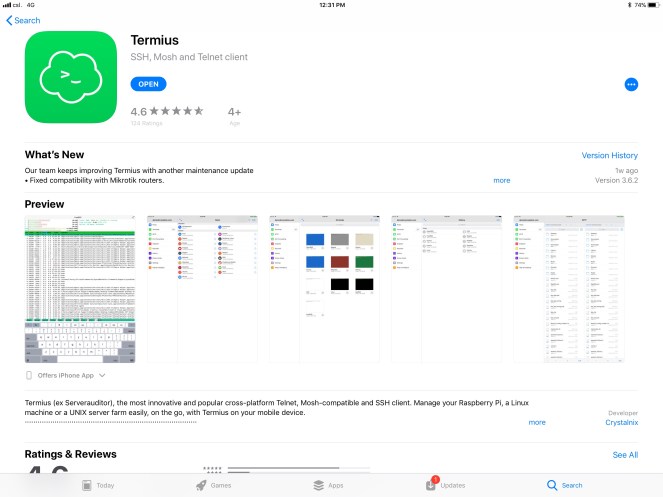
In order to strengthen the security of the cloud server, a typical authentication of public and private key is used. The cloud server provider is supported to generate the key pair in their site, but it doesn’t support to download to iOS. Hence, you need tools to generate the key pair on your own and import into the cloud server provider’s platform. Termius is my choice.
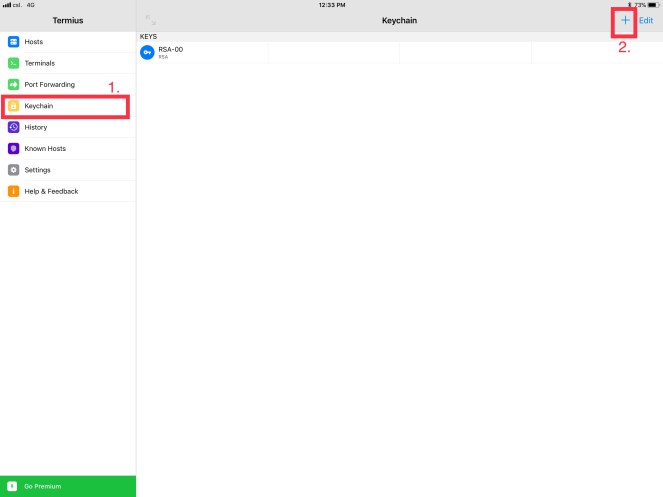

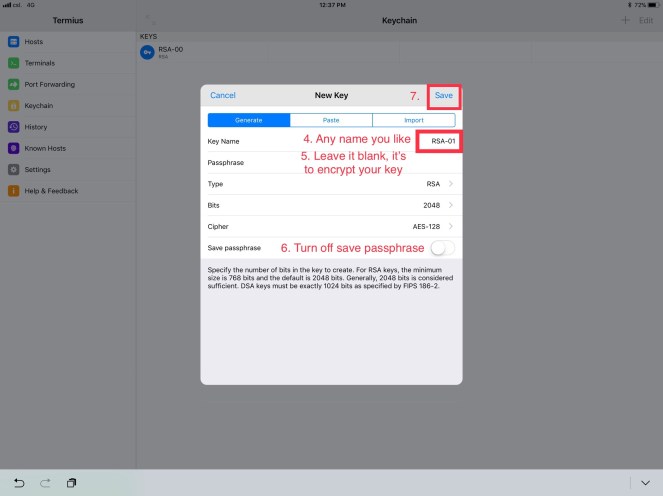
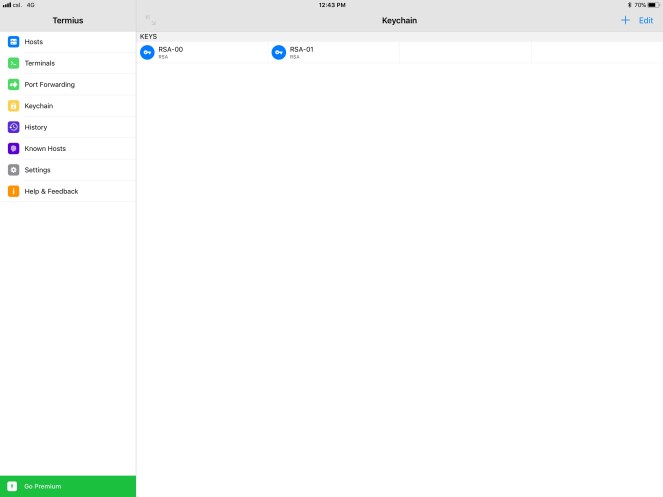
Now, your keypair has been created in IPAD now. The next step is to import into Cloud Server Provider’s Platform with the public key.
3. Create Instance in Cloud Server Provider
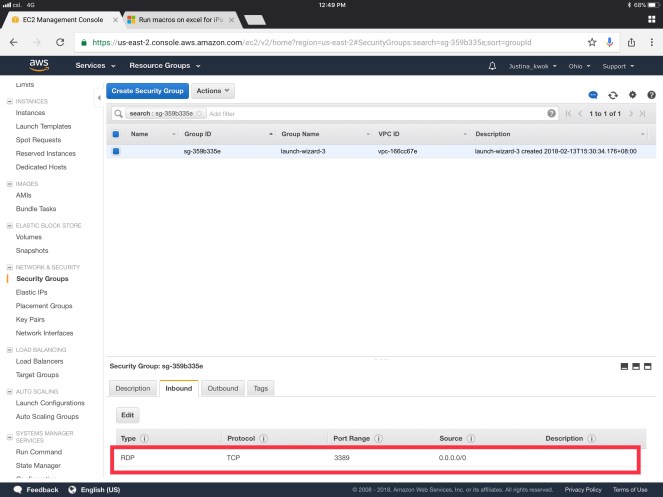
Pls follow the default setting to create the instance except to allow the Remote Desktop connection in the security group setting.
4. Getting window password for the instance
In order to generate the admin password in the cloud server provider, it requires the private key generated in previous steps. Hence, it’s important that your private key has not been encrypted. Simply copy it and paste in the generator.
5. Starting your instance
6. Remote connect the cloud server on iPAD
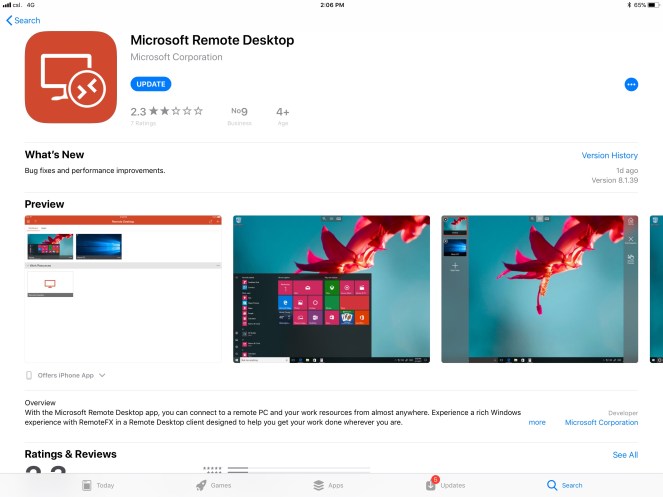
My choice of Remote Desktop app is Microsoft one.
After you connect to a Cloud window server, you can download any applications that you like.
 Magic Moments